Zoom Team Chat for competitive intelligence where your team works
- Run slash commands directly in Zoom
- Receive scheduled competitive news summaries
- Automatically capture competitive insights
- Ask questions about your competitive knowledge base
How does the Zoom Team Chat integration work?
Steve, an AI competitive intelligence platform, runs as a bot inside Zoom Team Chat, answering slash commands like /battle-cards and /latest-news directly in a channel or direct message. Add the bot to a channel and it can post scheduled competitor news, monitor for competitive intel, and remember context within a reply thread.
Navigate to Settings
- 1Log into your Steve account and click Settings in the navigation menu.
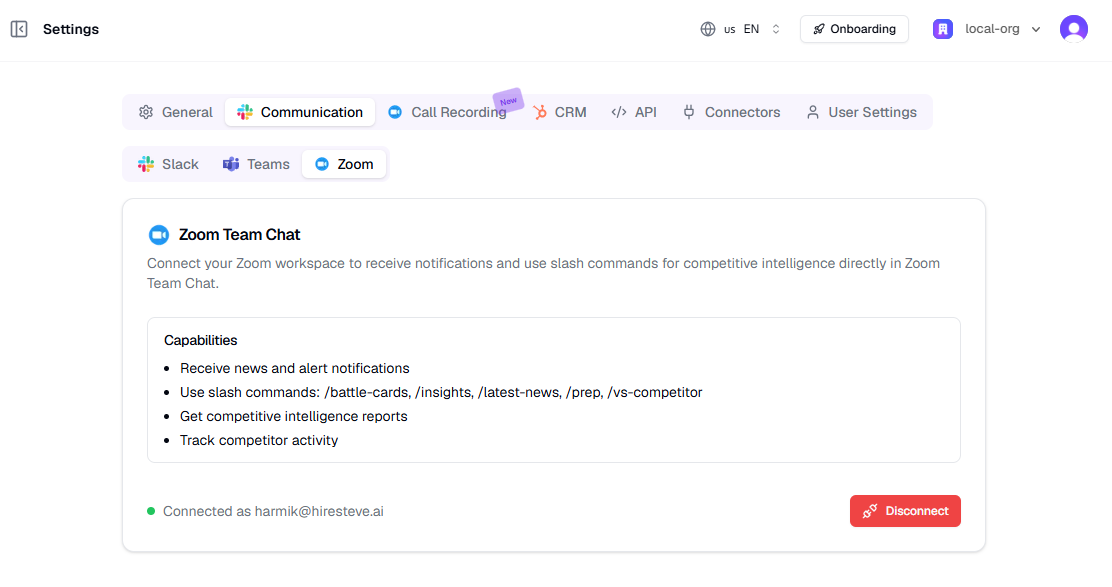
- 2Open the Communication tab and select the Zoom tab.
- 3You'll see the Zoom Team Chat card with the bot's capabilities and current status.
Connect Your Zoom Workspace
- 1Click the Add to Zoom button to start the authorization process.
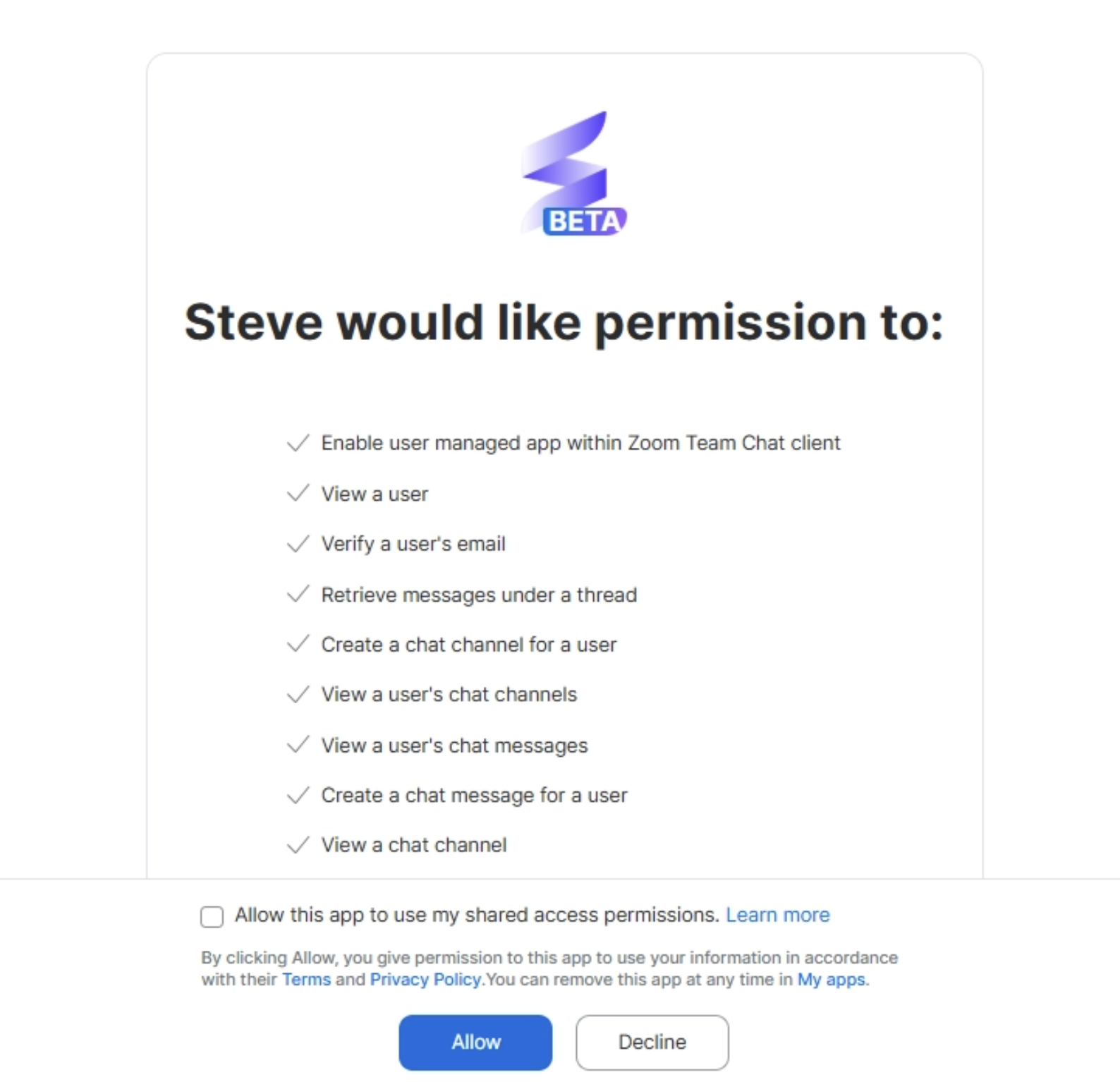
- 2You'll be redirected to Zoom's OAuth page where Steve requests permissions to enable the app within your Zoom workspace.
- 3Review the permissions and click Allow to authorize.
- 4You'll be redirected back to Steve with a success message.
Add the Steve Bot to Your Channels
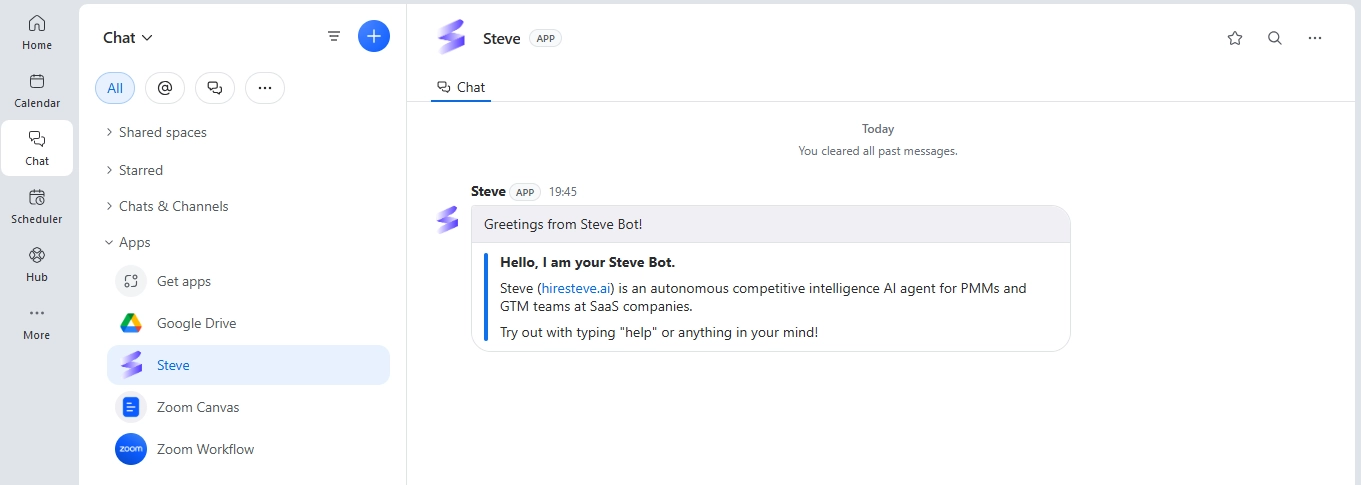
- 1Open Zoom Team Chat and navigate to the channels where you want to use Steve.
- 2Add the Steve bot as a member to each channel.
- 3This is required for all channel features like summaries, monitoring, and @Steve mentions.
- 4The bot can now listen for commands and send notifications in those channels.
Configure News Summaries and Intelligence Channels
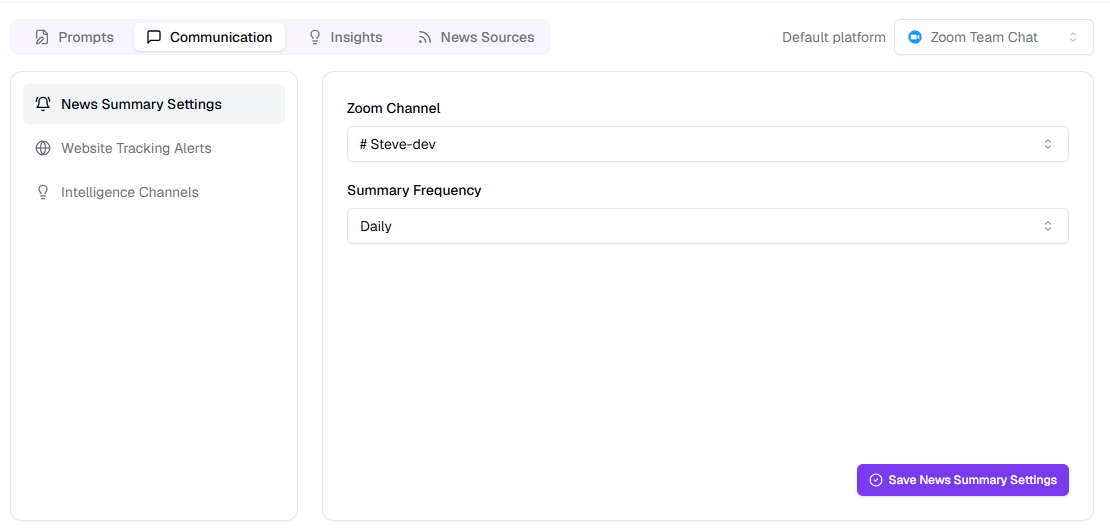
- 1Inside each project, go to the project's Zoom settings to configure notification channels.
- 2Select a Zoom channel where Steve will send daily or weekly competitor news summaries.
- 3Set up intelligence channels where Steve will monitor for competitive insights and offer to save them to your knowledge base.
- 4Configure whether any user can approve insights or only PMMs.
Available Slash Commands
Use these commands to interact with Steve directly in Zoom Team Chat. In direct messages, type the command directly (e.g. /battle-cards). In channels, mention the bot first (e.g. @Steve battle-cards).
/battle-cardsView and filter published battle cards for a project by competitor and time range
/latest-newsGet the latest competitor news filtered by competitor and duration
/canvasBrowse shared battle-card canvases for a project
/vs-competitorOpen competitor view links for a project
/prep [LinkedIn URL]Prepare for a meeting from a prospect's LinkedIn profile with stakeholder analysis
/helpShow the full command menu and available options
Tip
Reply in the same thread to ask follow-up questions — Steve remembers the conversation context within that thread.
What Steve Can Do in Zoom
Slash Commands
Pull battle cards, news, meeting prep, and competitive links directly in Zoom
Ask Anything
Type plain-language questions to chat with your competitive knowledge base
Scheduled Summaries
Get daily or weekly competitor news summaries posted to channels you choose
Intelligence Monitoring
Let Steve watch channels for competitive intel and save approved insights