Back to Integrations
Integration
Slack for instant insights and intel monitoring
- Instant insights in your channels
- Monitor shared competitive intel
- The latest news, in your Slack
Step 1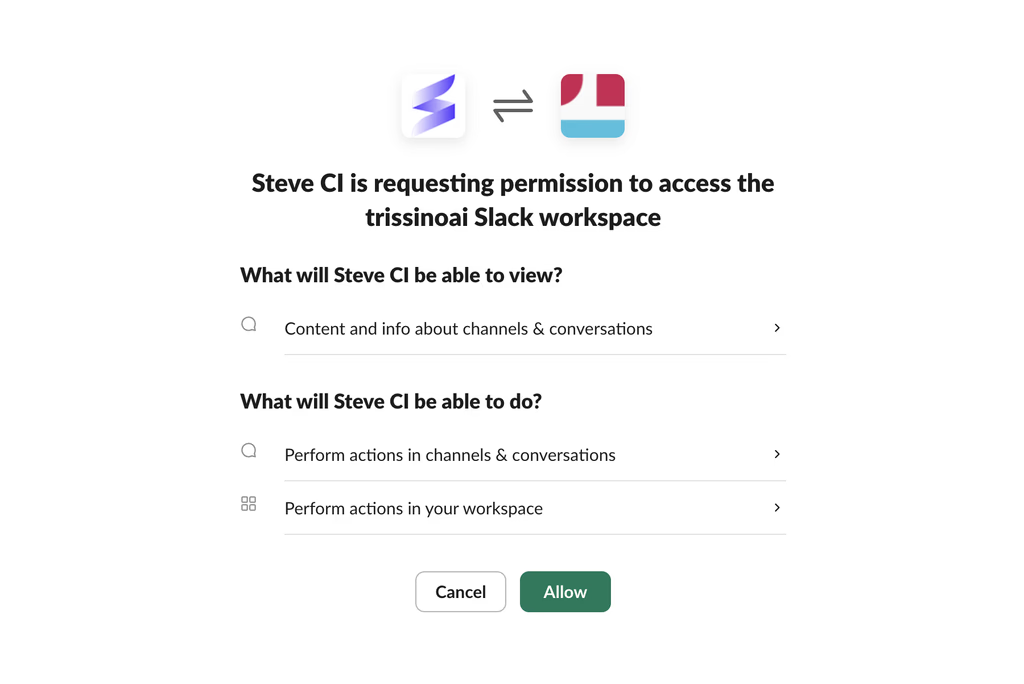
Get your Slack connected
- 1Navigate to the settings page, which is the last element on the navigation on the left-hand side, and click on the communications tab; or open this URL.
- 2Under the Slack tab, click on the `Add to Slack` button.
- 3Authenticate on the Slack OAuth page and that's it!
Step 2
Get insights on your fingertips
- 1Steve works best with the '/insights' command.
- 2You can ask it a wide variety of questions related to your competitors.
- 3You can answer to Steve's follow up questions too!
Step 3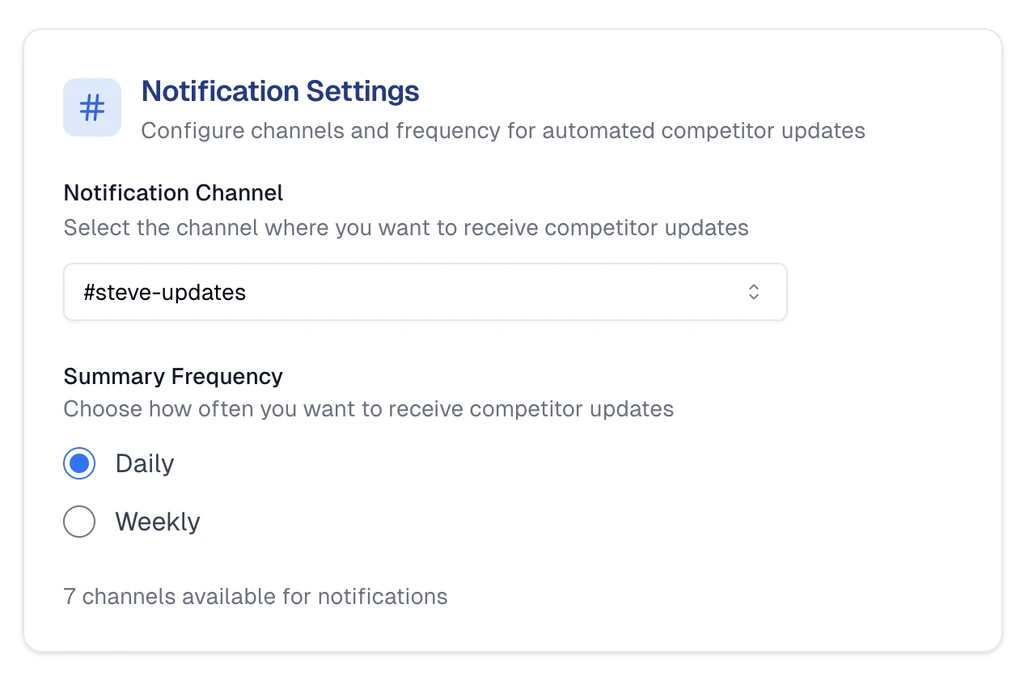
Configure a channel for Competitor Alerts
- 1You can configure different alert channels for different projects.
- 2When inside a project, go to the 'Slack Settings' page from the left navigation.
- 3You can select a channel where Steve would send regular competitor updates, primarily pulling in news your competitors are making.
- 4You can configure Steve to send updates either Daily or Weekly.
Step 4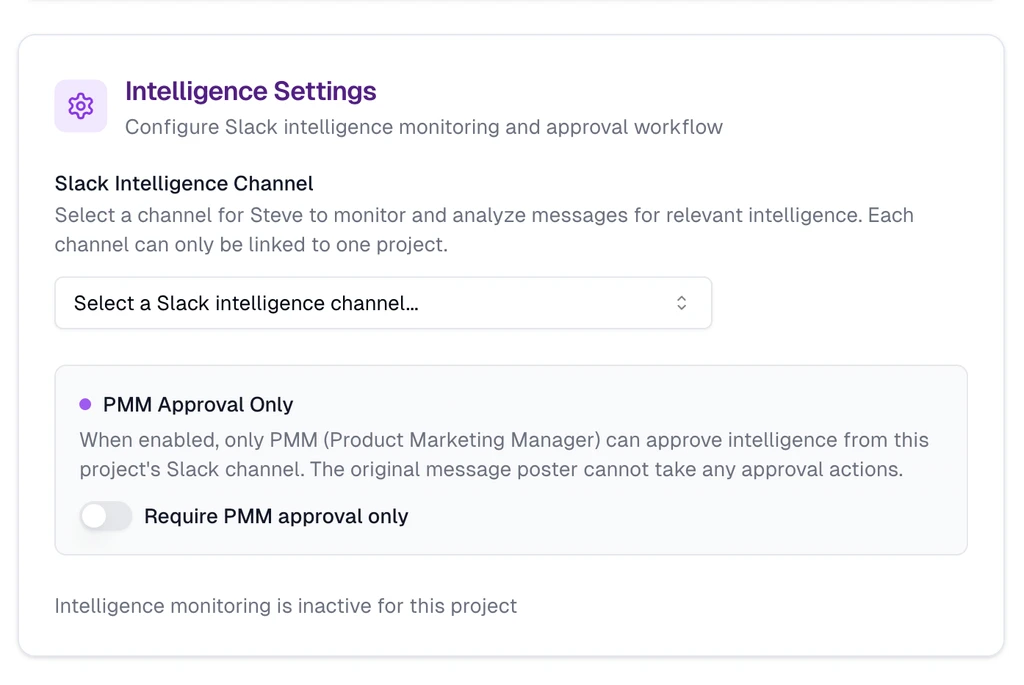
Configure a channel for Steve to detect Competitor Insights
- 1You can configure different channels for different projects.
- 2When inside a project, go to the 'Slack Settings' page from the left navigation.
- 3You can select a channel where Steve would listen to insights shared on those channel.
- 4Steve can see messages shared ONLY on this channel.
- 5By default the person who posted the insight can approve the insight to be included in Steve's knowledge base.
- 6You can turn off this setting by setting 'Require PMM approval only' to true.